04 / 04
Chat is the easy part
The product is everything between “add a tag” and the CRM actually changing.
CRM Agent is a conversational action layer inside Teamforce CRM. Agents search, ask and run common CRM tasks in plain language.
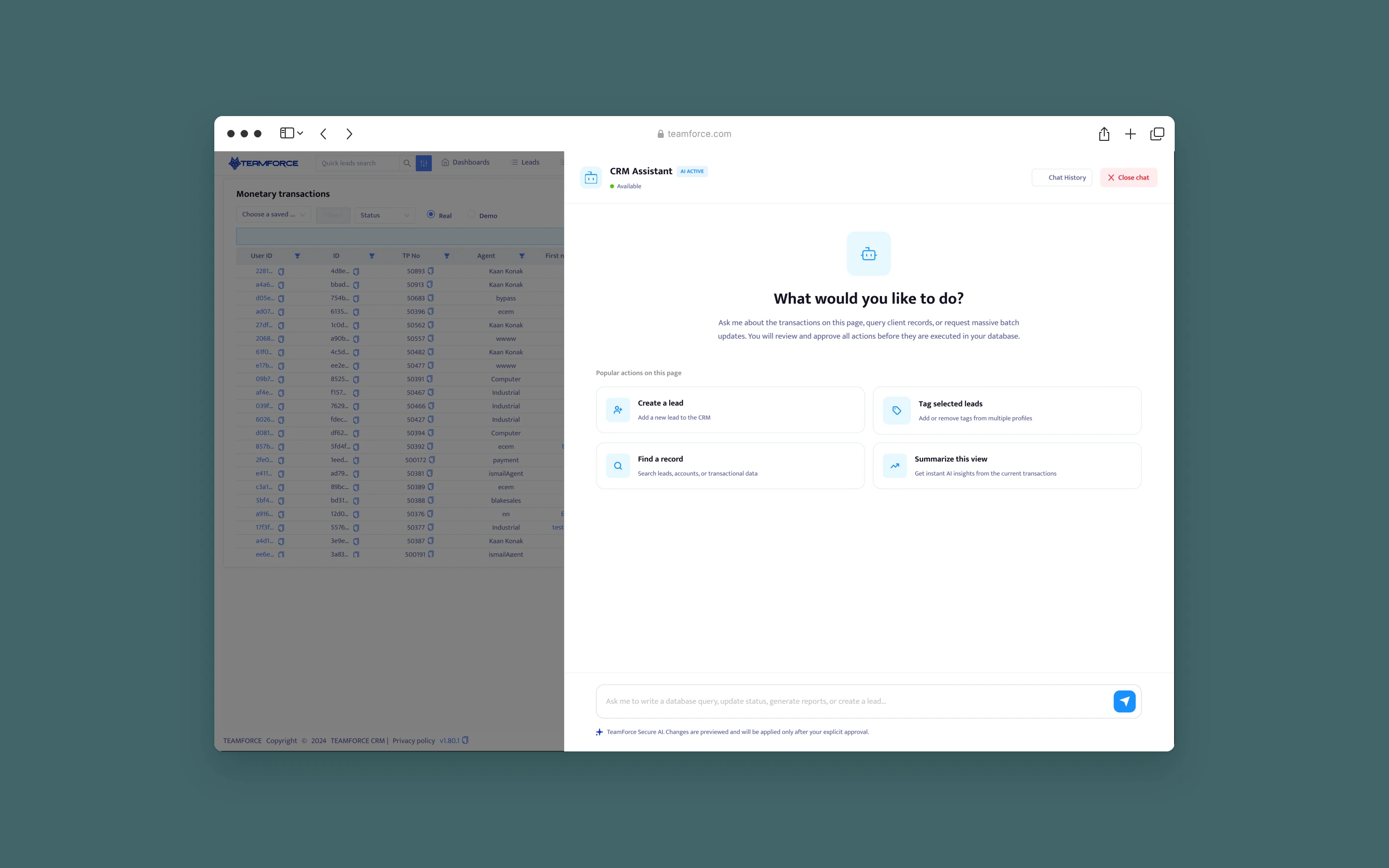
the problem
The request was a chatbot. The real problem was trust.
The brief asked for an in-CRM chatbot that could create leads, add tags, reset passwords and run batch updates. A chatbot that talks is easy to build. The hard part is making sure it finds the right record, respects permissions, recovers when something fails, and shows the user what will change before it changes. In a CRM, a wrong tag on the wrong “Manar Alshami” is a real mistake with a real client.
the experience
Every state tells the user where the request is, and who it's waiting on.
A request moves through a visible sequence: understand, resolve, validate, check access, review, approve, execute. The status under “CRM Assistant” changes at each step, so the user always knows whether the assistant is working or waiting for them.
Shipped
- Assistant panel inside the CRM
- Five skill groups, from search to restricted account operations
- Review-before-change, undo and permission recovery
I owned
- Reframing a chatbot into a command layer
- The skill contract and execution sequence
- Every state of the assistant, and the front-end build
Team decisions
- No page context in the first release (engineering)
- CRM stays the system of record (architecture)
- Which operations count as restricted (security)
Measured
- Tagging time 74 s → 19 s
- 0 wrong-record updates in the pilot
- 58% weekly use on pilot desks
entry · smart empty state
Replace “How can I help?” with what it can actually do.
An open prompt invites requests the assistant can't handle, and every failed first attempt costs trust. The empty state lists the skills it supports as tappable starters: Create a lead, Tag selected leads, Find a record, Summarize view.
The subtitle sets the contract before the first message: “You'll review all changes before they're applied.” The same line sits under the composer for the whole conversation.
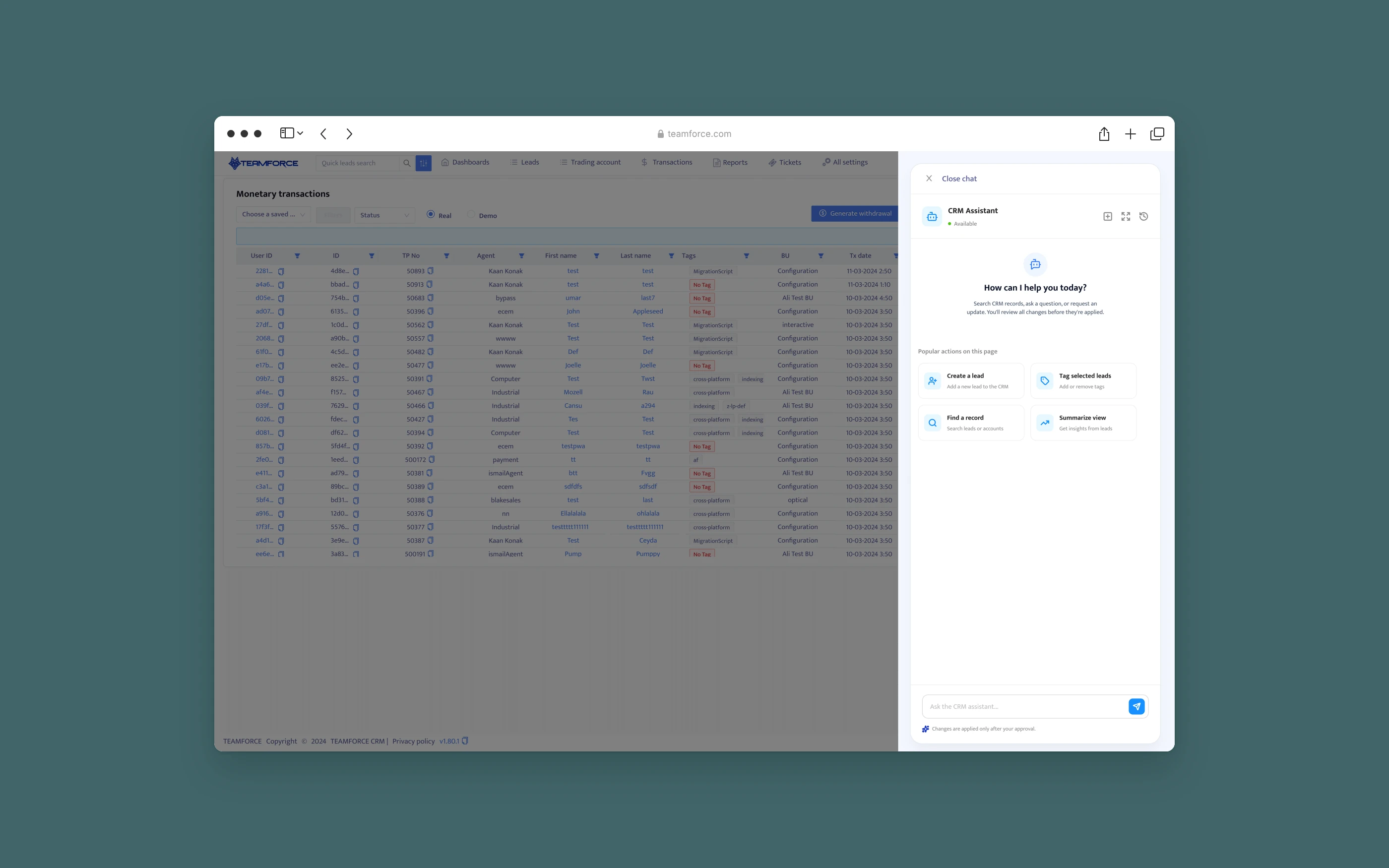
Status is always visible in the header. Supported skills are the starting points. The approval promise sits under every message.
understand · resolve & validate
Never guess which record. Ask, with the details that tell them apart.
The assistant pulls the intent and the details already given (“Warm lead”, “Manar Alshami”), then searches only records the user is allowed to see. Two matches share a name and an email, so the assistant shows both with their lead IDs and waits. Search again is there if neither is right.
Once the user chooses, the assistant restates the selection and checks the tag and the user's permission before preparing anything. It asks only for what's missing or unclear.
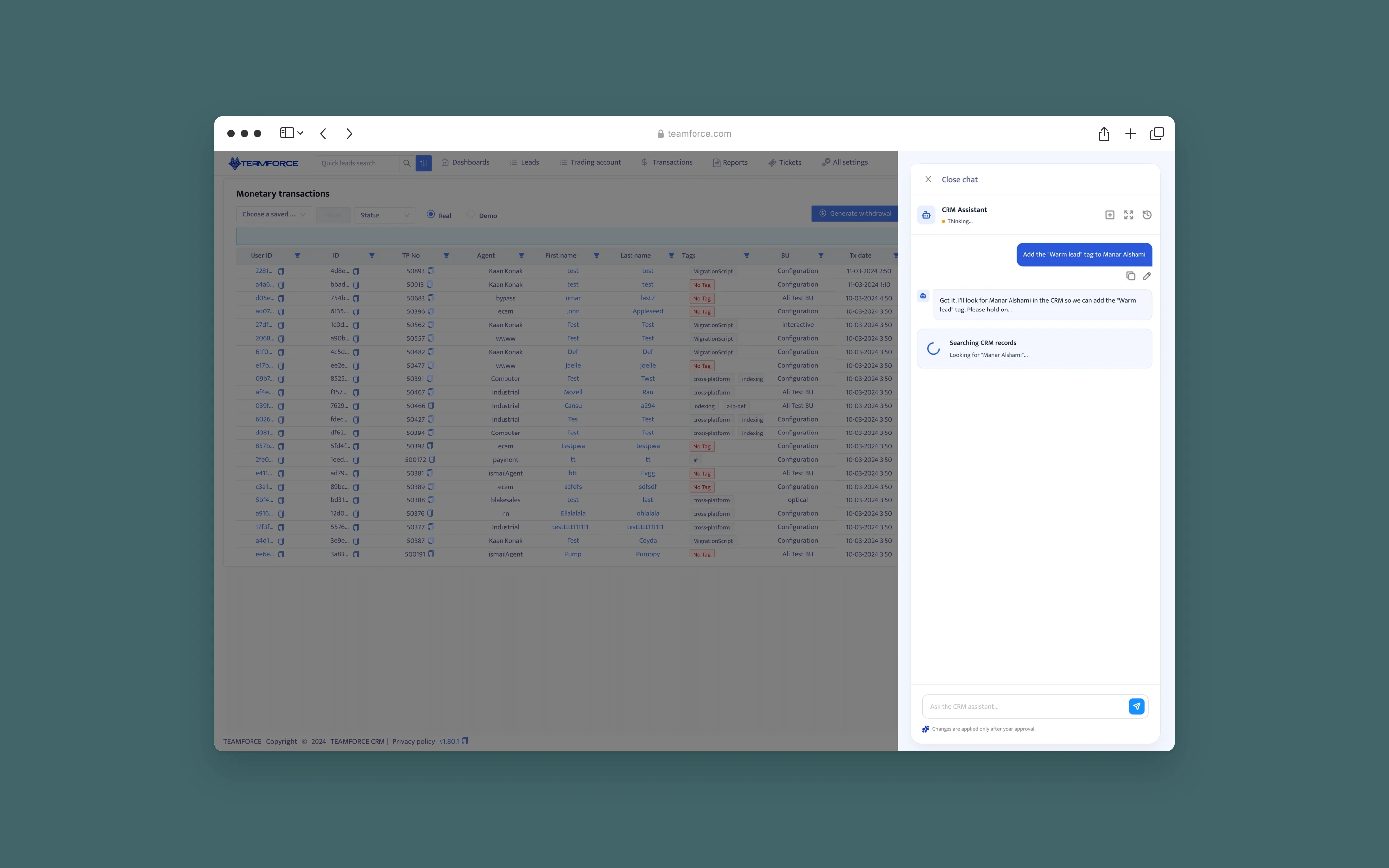
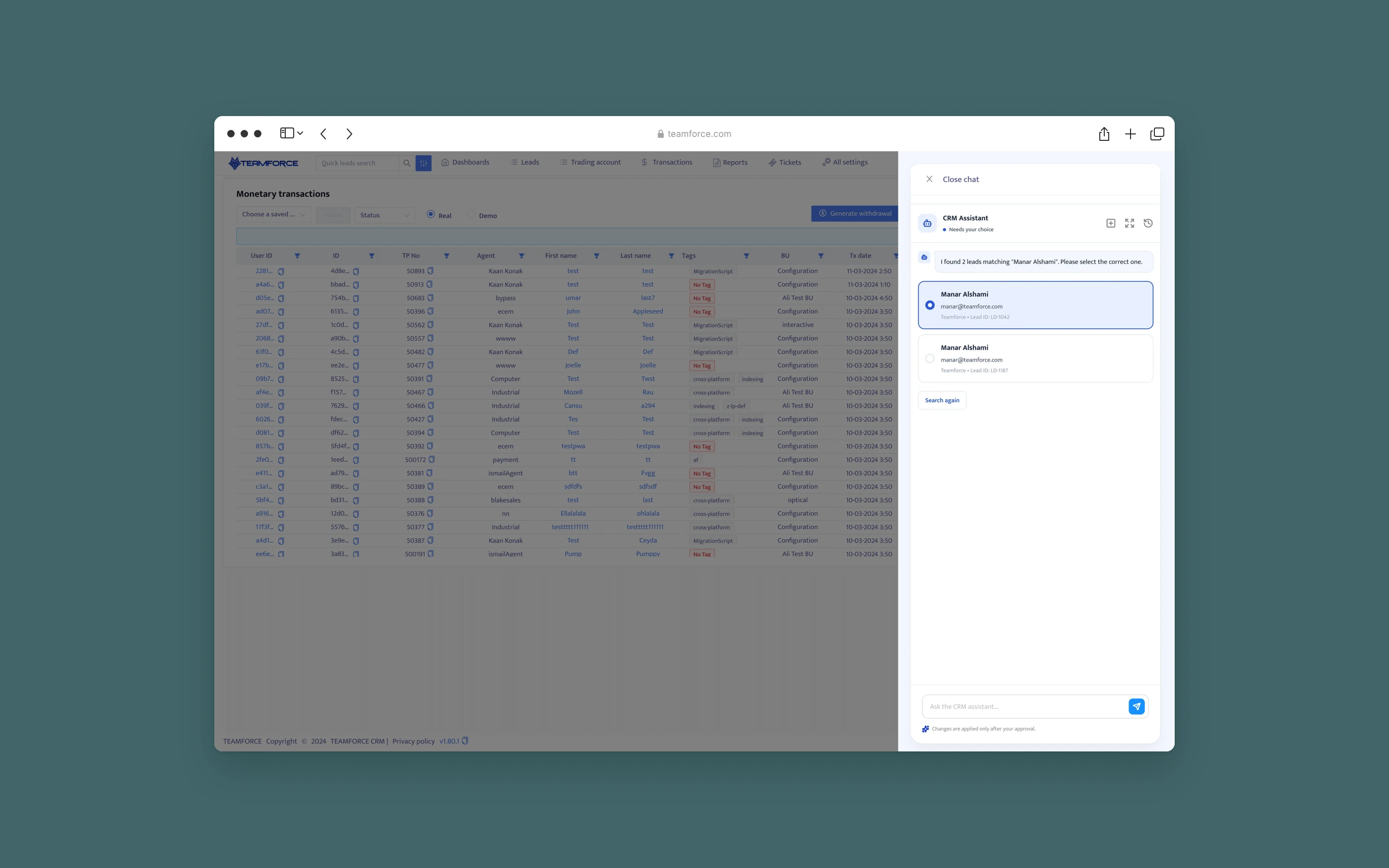
Request: “Thinking…” in the header, and what it's searching for, named. Resolve: “Needs your choice” tells the user the assistant is waiting for them. The lead ID is the deciding detail, and there is a way out.
approve · review
The user sees the exact change before anything runs.
Review change works like a receipt before paying: Will change (lead with ID, tag), then Impact (“The tag will be added”, “This lead does not already have this tag”). The duplicate check prevents a no-op that would still clutter the audit log. Nothing runs until Add tag is clicked.
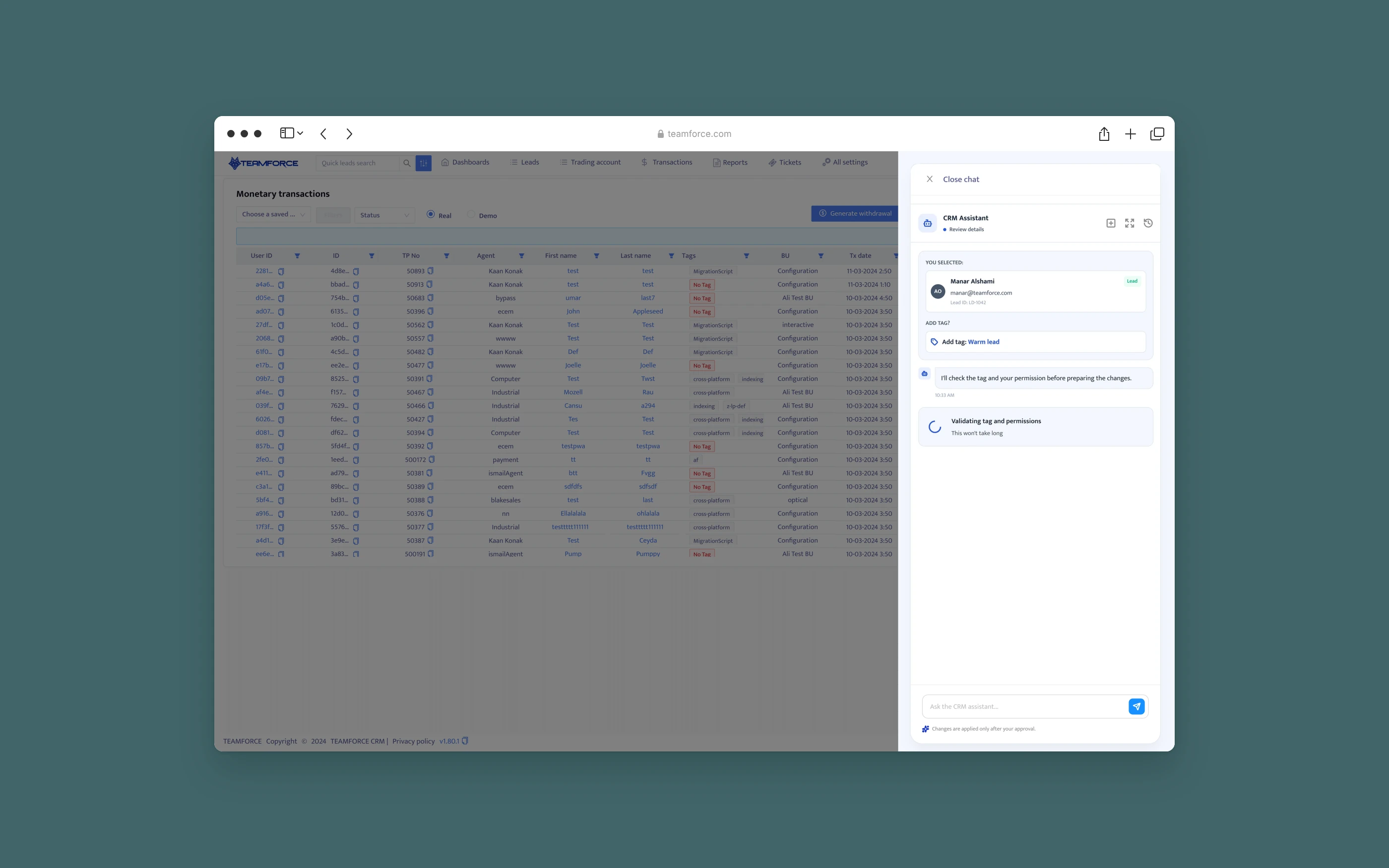
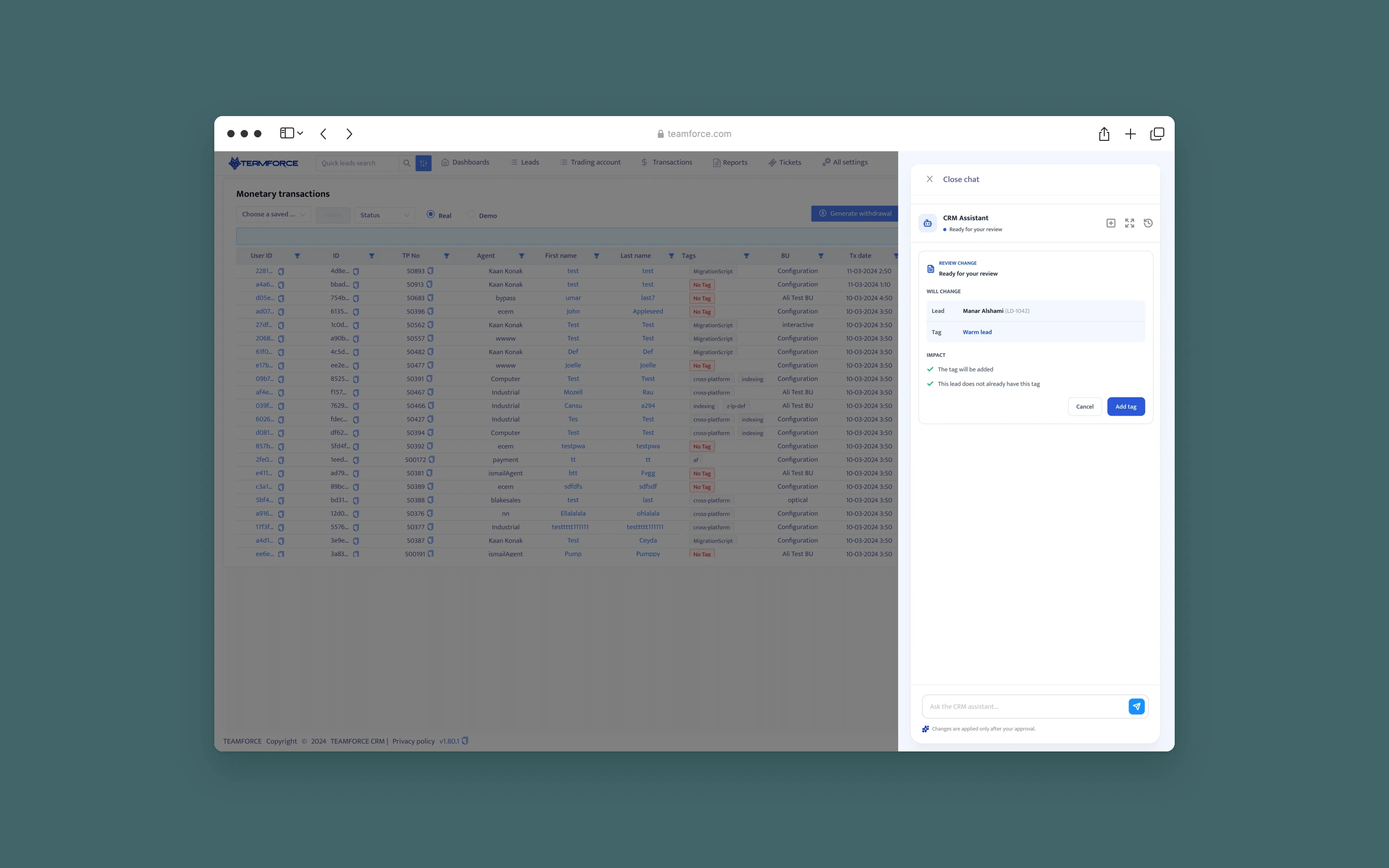
Validate: the choice is restated with its ID, and permission is checked before the review, not after. Review: what will change, the checks already run, and approval as one explicit click.
execute · complete
An honest result, with undo first.
Progress is real, with a percentage and “Please don't close this panel.” The result card offers Undo, Open lead and Add another: reverse it, verify it, or keep going.
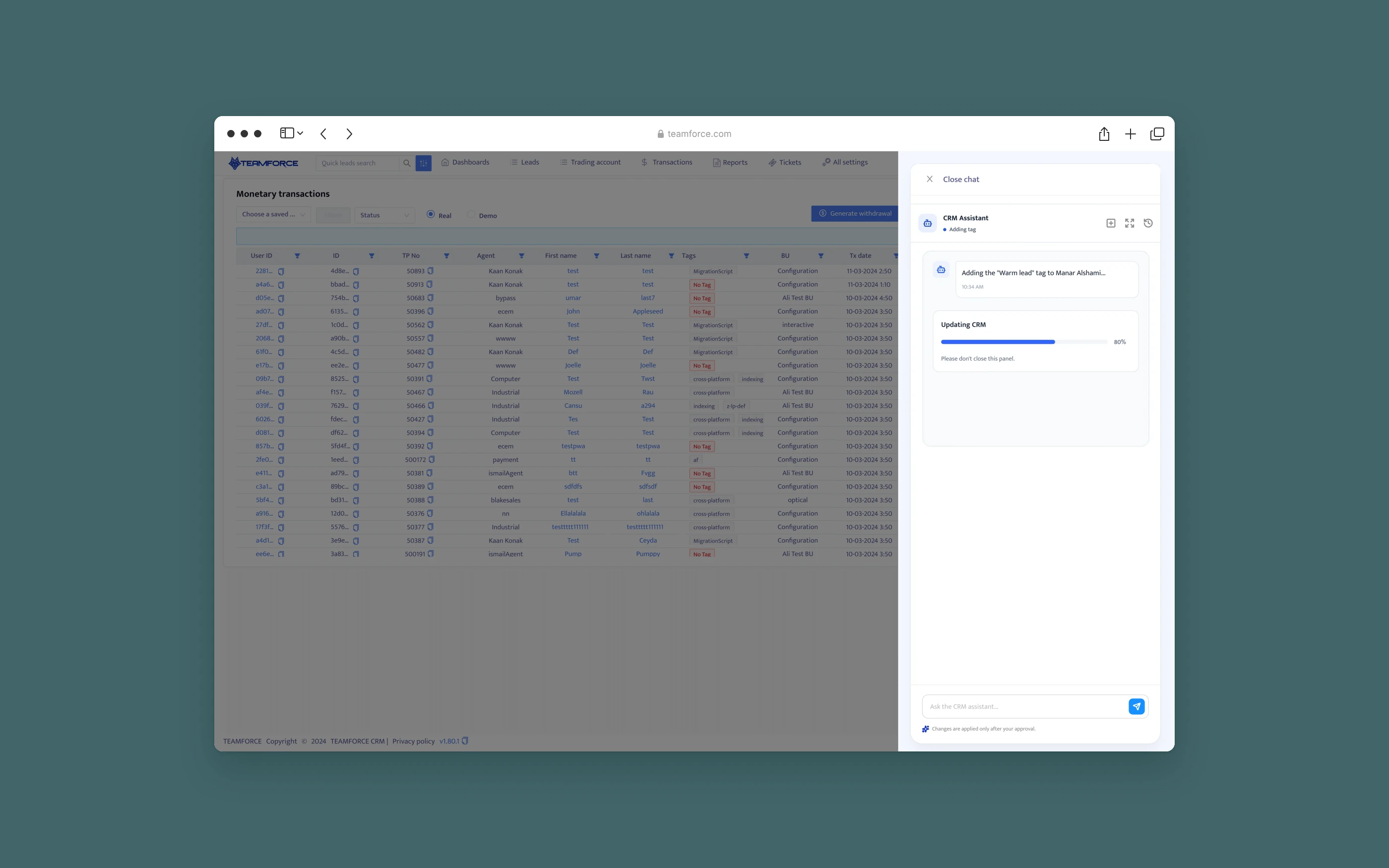
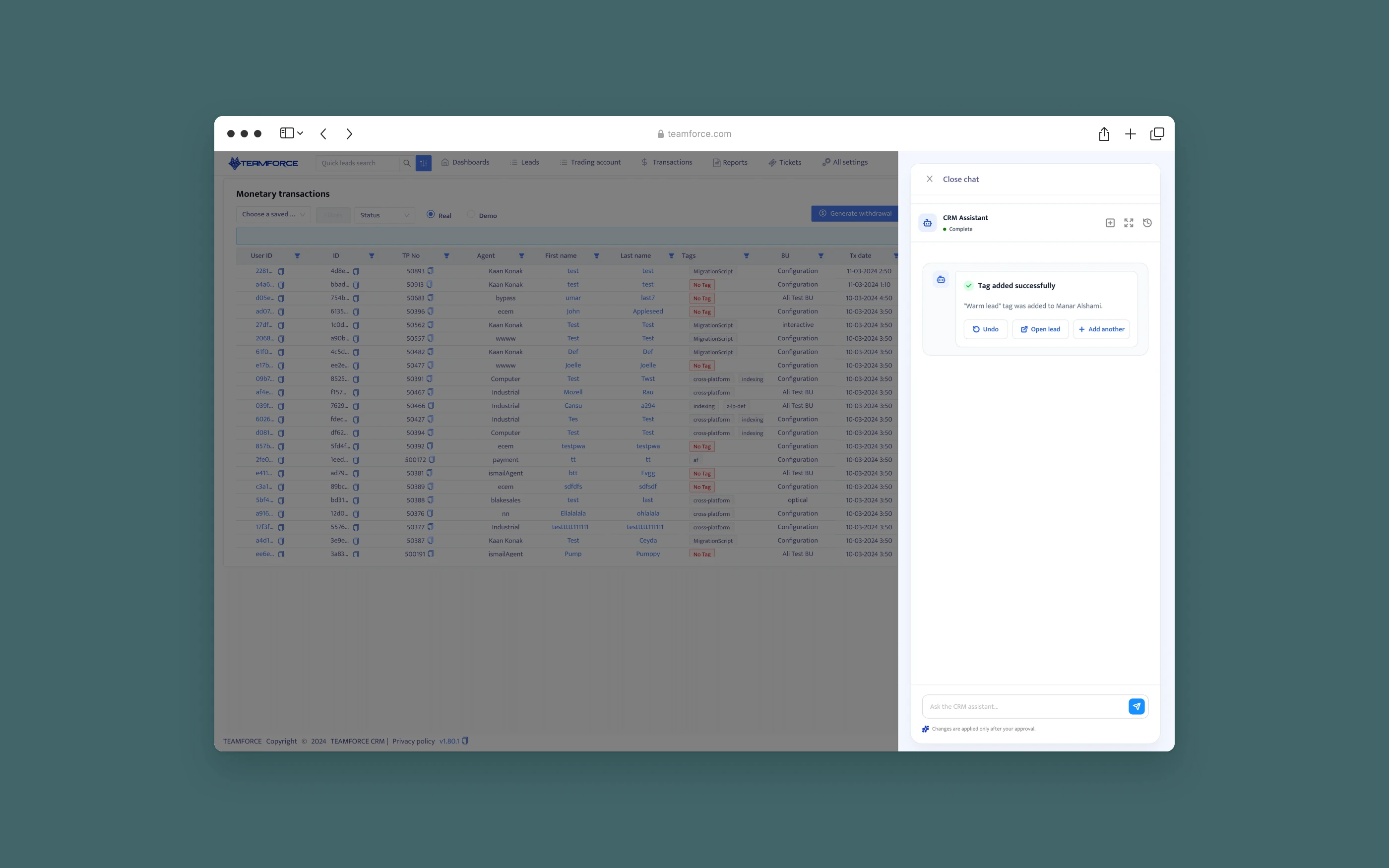
Execute: “Adding tag” names the action, and progress matches the work. Complete: stated plainly, with Undo as the first option offered.
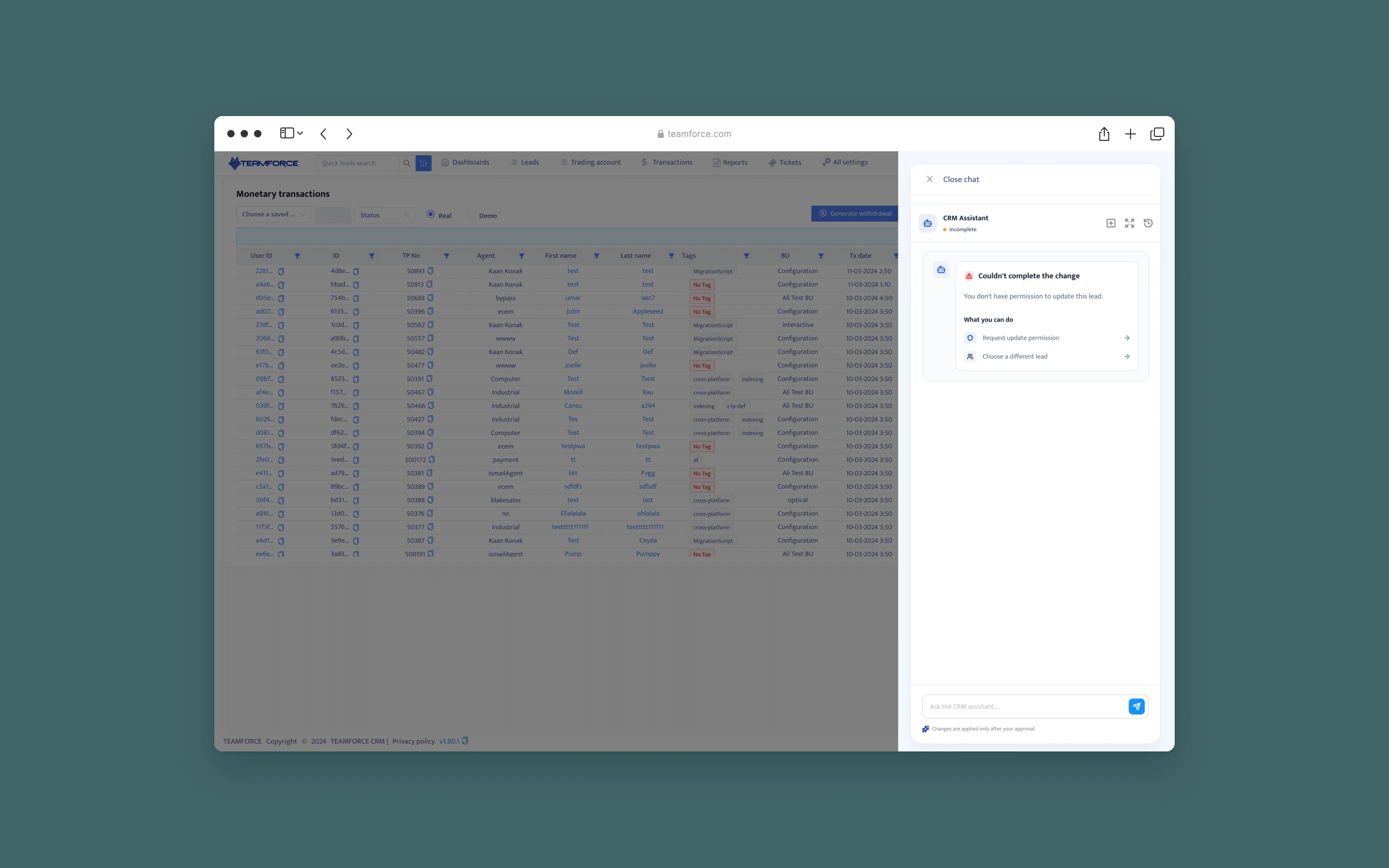
recover · denied state
A permission error that tells you what to do next.
The status reads Incomplete, because the request is unfinished, not broken. The card explains why in plain language and offers What you can do: request update permission, or choose a different lead.
The assistant never retries with elevated access and never hints at a workaround. The same rule holds for every failure: say what happened, say what's still safe, and offer a next step.
context awareness
What the assistant knows, and how it shows its work.
The assistant answers from layers of context, and each layer has a rule. The guiding principle: context can fill in a blank, but it can never pick a record or approve a change on its own. Anything the assistant infers appears on screen for the user to confirm.
Account
Role, permissions, business unit and desk
Limits what search returns and which skills are offered. Checked again before every review.
Record
The resolved record's current data
Tags, owner, status. Drives the impact checks, e.g. “This lead does not already have this tag.”
Conversation
Earlier turns in this session
Records already chosen, tags already used. Resolves follow-ups like “the same tag” or “her”, and powers Add another.
Page · v1.1
Current module and selected rows
Once the CRM exposed them. Ranks “Popular actions on this page” and pre-fills “Tag selected leads”. It's shown as a chip the user can remove, never applied silently.
Why page context came later: the first release couldn't read page state, so it relied on explicit @ mentions. Page context shipped in v1.1 as visible, removable chips, so the same “explicit scope” rule still applied.
example · context in action
A follow-up request, resolved from context and shown for review.
After tagging Manar, the agent types a short follow-up. The assistant fills the gaps from context and shows which context it used, so the user can check it before approving. This is an illustrative conversation built for this case study, not a screenshot.
Agent
“Add the same tag to Omar too”
The assistant replies: “Using Warm lead from earlier. I found one Omar you can update.” Context used: tag from this chat, Omar → 1 match in your unit, leads.update ✓.
Review change
Lead Omar Haddad (LD-2210) · Tag Warm lead
✓ Omar doesn't have this tag yet. Cancel / Add tag. Changes are applied only after your approval.
Conversation context
“The same tag” is resolved from the previous turn and named back to the user, not assumed silently.
Account context
The search is limited to records in the agent's business unit. Exactly one match, so no choice is needed. Two matches would bring back the “Needs your choice” step.
Permission context
Checked before the review appears, so the user never approves something that will fail.
Record context · still the user's call
Omar's current tags power the impact check. Context shortened the conversation from four turns to one. It didn't remove the review.
honest read
What didn't work, and what's next
@ mentions felt slow for power users until page context arrived. Batch operations needed a better review: a list of 40 records doesn't fit a chat card. “Summarize view” was popular, but useful only once page context shipped.
Next: a batch review table that opens beside the chat for large changes. Saved skills for each desk's most repeated requests. And an audit view in the assistant: “what did I change today?”
Responsibility is shared between the model, the application and the person approving. The design makes each one's part visible.
Informative Nudge
Next